

Allgemein sind die Fotos
© Jürgen Haug
(Sofern nicht anders angegeben)


index
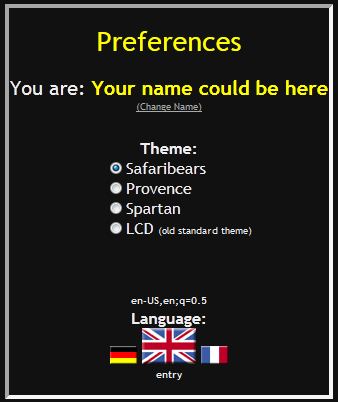
Du kannst hier einen Benutzernamen auswählen, wenn Du auf der Hauptseite persönlich begrüßt werden willst.
Du kannst das Aussehen von Safaribears über die Themes ändern, die Funktionen bleiben gleich. Dies ist für Leute, die Standard-Theme nicht mögen.
Auch kann man hier die Sprache auswählen (Deutsch / English / Français).
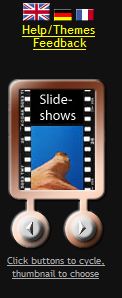
Wenn Du auf 'Hilfe/Themes' klickst, kommst Du hierher.
Wenn Du auf 'Feedback' klickst, kannst Du mir eine eMail schicken.
Darunter kommt der Navigator, mit dem Du alle wichtigen Themen finden kannst:
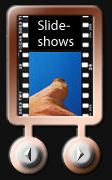
Finde die Sektion, die Du ansehen willst (z.B. die Slideshows oder ChezTeddy) indem du durch die verschiedenen Möglichkeiten blätterst,
benutze dazu die zwei Buttons Rechts/Links. Springe dann zur gewünschten Sektion durch Anklicken des Miniaturbildes.
Im Beispiel wäre dies die Seite mit den Slideshows.
Die Slideshow-Auswahl
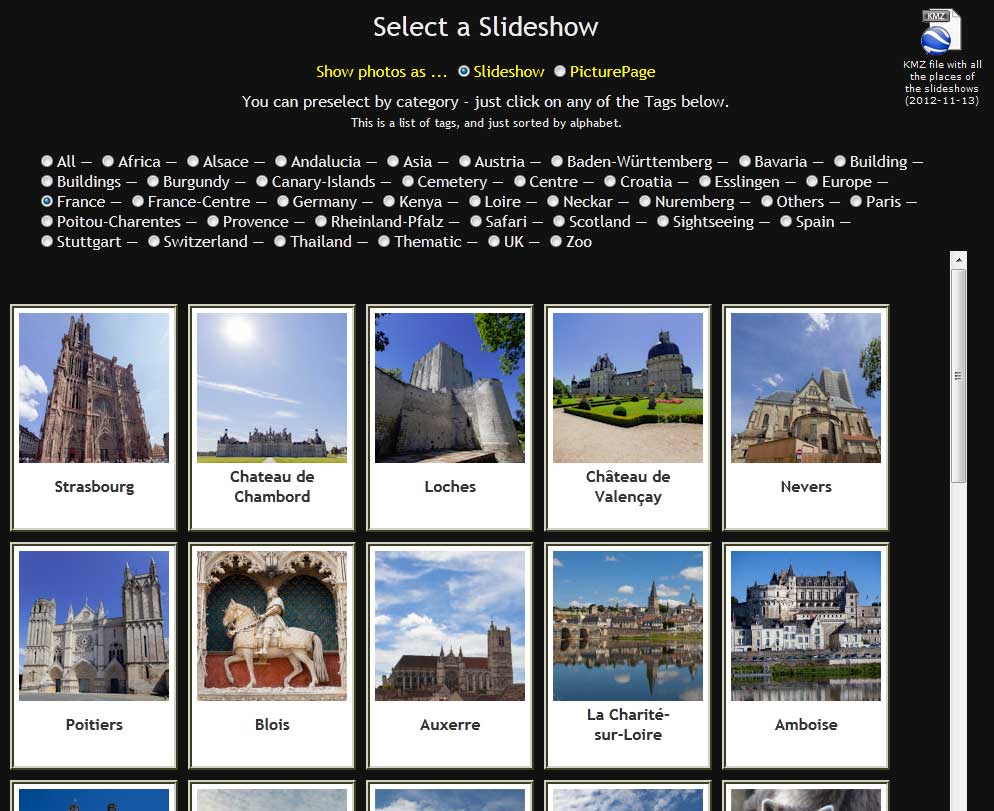
Wenn man die Sektion die Slideshows ausgewählt hat, ist die Darstellung wie in dem Bild oben.
Die Navigation links bleibt gleich, neu ist die Slideshow-Auswahl.
Hier muß man als erstes auswählen, wie man die Bilder ansehen möchte:

- ob man die Bilder als klassische Slideshow sehen will (ein Bild nach dem anderen, in groß)
- oder als PicturePage (eine Seite mit allen Bildern zum Thema als Miniatur-Bilder. Diese kann man dann einzeln anklicken und in groß ansehen).
Darunter kann man (wenn man möchte) über die Radio-Buttons eine Vorauswahl treffen (dann werden die Slideshows unten entsprechend neu dargestellt),
oder man sucht einfach direkt unten eine Slideshow aus, die einen interessiert.
Im Beispielbild sieht man als Vorauswahl "France", so daß nur Themen mit Bezug auf Frankreich angeboten werden.
Ganz unten sind dann die ganzen 'Kacheln' der Themen (Slideshows) zum anklicken, von "Straßburg" über "Auxerre" bis zu "Paris".
Außerdem gibt es noch oben rechts ein Icon das einem den Download einer Datei für Google Earth anbietet. Damit kann man dann in Google Earth die ganzen Orte ansehen, zu denen es auf SafariBears eine Slideshow gibt. Links zur entsprechenden Slideshow-Seite auf SafariBears gibt es natürlich auch.
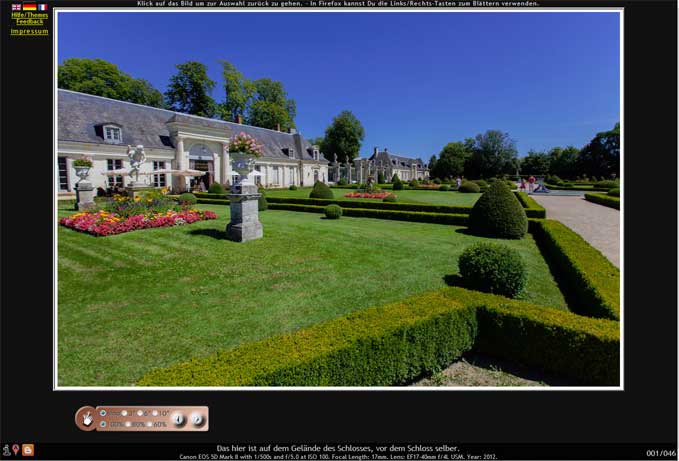
Dies ist die Ansicht eines Themas als klassische Slideshow.
Wenn man auf das Bild klickt, kommt man wieder zurück zur Themen-Auswahl.
Das kleine Element ist die 'Fernbedienung' und beinhaltet die wichtigsten Knöpfe
(vorwärts, rückwärts, die Sekunden für den automatischen Slideshowmodus und Bildgröße in Prozent).
Die 'Fernbedienung' kann man auf der linken Seite mit der Maus aufgreifen und per Drag&Drop verschieben wie man möchte.
Ganz unten steht in der Mitte ein Text mit Informationen zum Bild (eventuell ein Kommentar von mir, sowie technische Informationen wie der Kameratyp und das verwendete Objektiv).
Link gibt es noch bis zu drei Icons (teilweise nicht verwendet):
 - ein mehr oder weniger ausführlicher Text zum Thema - z. B. (wenn es um ein Schloß geht) wann das Schloß gebaut wurde, von wem, usw...
 - hier öffnet sich ein neuer Tab, mit Google Maps. Man sieht gleich die Position des besuchten Ortes.
 - ein neuer Tab, der einen zu Blogger bringt. Man kann dann bei einem Blog-Eintrag zum Thema einen Kommentar hinterlassen.
Ganz rechts sieht man noch, welches Bild von insgesamt wievielen angezeigt wird, also z. B. 001/046.
Die Ansicht eines Themas als PicturePage.
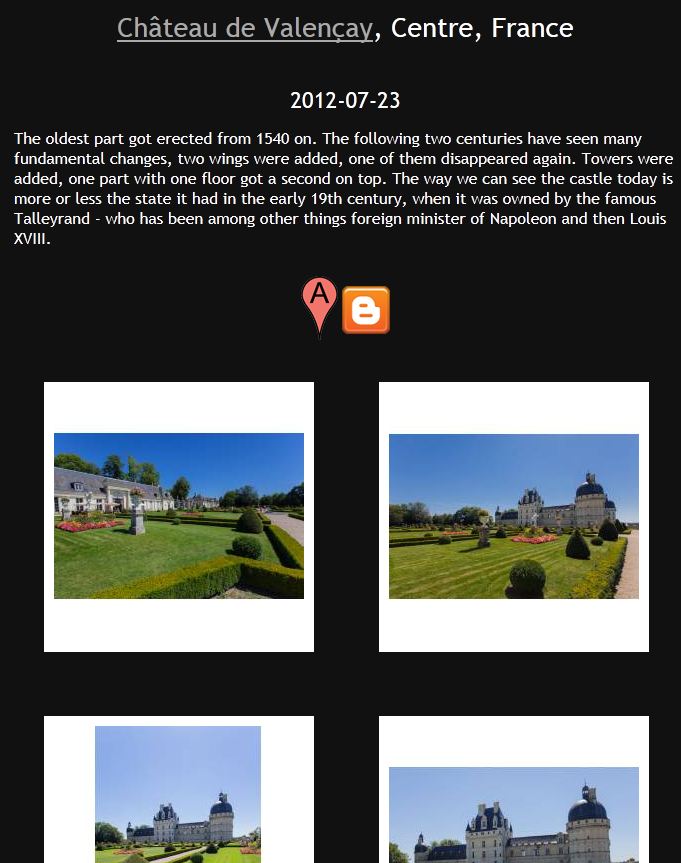
 Wenn man im Hauptnavigator auf "Slideshows" klickt, kommt man wieder zurück zur Themen-Auswahl.
Als erstes kommt ein mehr oder weniger ausführlicher Text mit Informationen (in der klassischen Slideshowansicht war dies über das Icon zu erreichen).
Darunter kommen dann die beiden mögliche Icons, die schon aus der Slideshow-Ansicht bekannt sind:
- here opens a new tab, with Google Maps. One can see the position of the visited place.
- ein neuer Tab, der einen zu Blogger bringt. Man kann dann bei einem Blog-Eintrag zum Thema einen Kommentar hinterlassen.
Danach kommen dann die einzelnen Kacheln mit den Miniaturbildern. Diese kann man dann anklicken, und das Foto in voller Größe anschauen.